7 Best AI Presentation Makers: From Existing Docs to a Usable Deck

Most decks don't start from a blank page. The content already exists in a report, a Google Doc, a page of meeting notes or a long thread. The slow part is turning all this material into slides someone can actually present.
The best AI presentation maker depends on two things: what you start from and where the deck has to end up. A Word doc headed for PowerPoint needs a different tool than a stack of chat messages headed for a shareable link.
Below are seven tools that handle that conversion well, what each one is best at, and prompts you can copy into each. Every tool gets an honest limitation, because an AI presentation maker that saves an hour on the draft and costs two on cleanup isn't saving anything.
The best AI presentation makers at a glance
If you're looking for the best AI presentation generator for doc-to-deck work, this is the short version. Prices are starting paid tiers billed annually where noted.
| Tool | Best for | Input sources | Exports to | Free option | Paid from |
|---|---|---|---|---|---|
| Mira | Pulling docs, chats and voice notes into deck-ready content | Docs, forwarded messages, voice notes, group threads | PDF, PNG, Google Docs, Slides & Drive | Free to start | From $27/mo |
| Gamma | Fast first drafts from imported files | Prompt, pasted text, PDF, PPTX | PDF, PPTX, PNG, Google Slides | Free plan | $9/seat/month |
| Copilot in PowerPoint | Turning Word docs into native PowerPoint decks | Word doc, PDF (work license) | Native PPTX | No | from $20.30/user/month (Business with Copilot) |
| Gemini in Google Slides | Native Google Slides decks built from Drive files | Prompt, Docs, Sheets, PDFs, past decks | Native Google Slides | 14-day trial | $14/user/month (Workspace Business Standard, annual commitment) |
| Canva AI | Visual decks inside a full design platform | Prompt, outline | PPTX, PDF, Canva link | Free plan | $12/month |
| Plus AI | Doc-to-slides inside PowerPoint and Google Slides | Prompt, PDF, Word doc | Native PPTX, Google Slides | 7-day trial | $10/month. Document uploads require the Pro plan |
| Beautiful.ai | Decks from documents and URLs with self-adjusting layouts | Text, PDF, URL | PPTX, PDF | 14-day trial | $14.50/month |
A free AI presentation maker gets you a draft. For regular use, the paid tier usually decides whether the deck is usable.
What makes an AI presentation maker good at doc-to-deck work
A good AI presentation maker keeps your content intact and gives you slides you can edit without starting over. Pretty layouts matter less than people expect. A deck with invented numbers is worse than no deck.
Six things separate the tools that work from the ones that only demo well:
- Input handling: It accepts a Word doc, PDF, Google Doc or URL, not only a one-line prompt.
- Outline first: It shows you the structure before generating slides, so you fix the story before the design.
- Output format: It produces a native PowerPoint or Google Slides file, or exports to one without breaking the layout.
- Editability: You can change one slide without regenerating the whole deck.
- Accuracy: It keeps the numbers and names from your source instead of filling gaps with placeholder data.
- Real cost: Free plans cap slides per prompt or AI credits, so check what a full deck costs, not a demo.
An AI slide generator that fails the accuracy test fails the whole job. Everything else is fixable in the editor.
1. Mira: best for turning scattered docs, chats and voice notes into deck-ready content
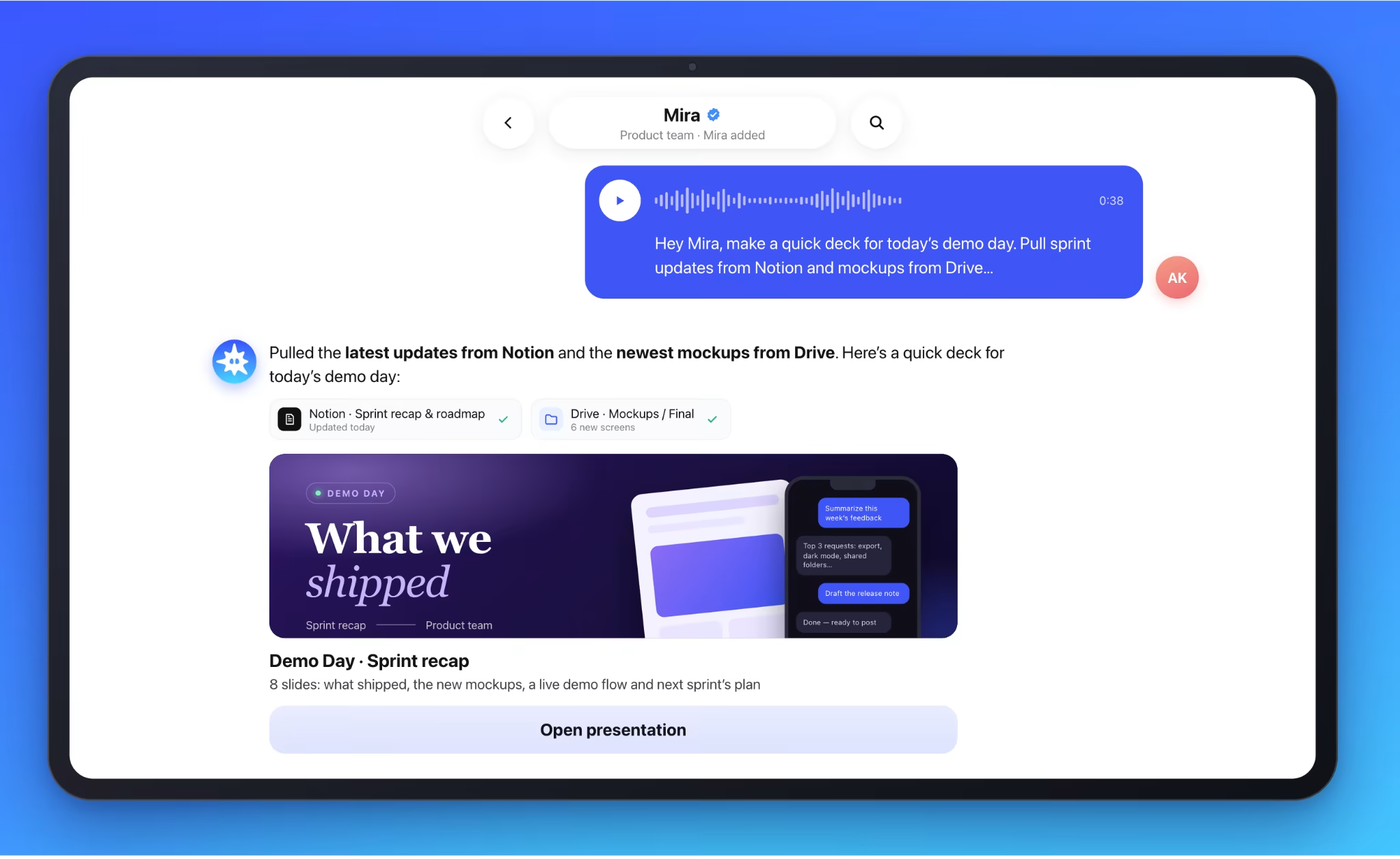
Mira handles the step most slide tools skip: getting the content into shape before anyone opens a template. It's an AI agent that works inside your messenger, so the source material is usually already there.
You can pull in source docs through the Google Drive integration, forward the messages where decisions were made, send a voice note with your thinking, or tag @mira in the group thread itself. Mira turns all of it into an outline, slide-by-slide copy and speaker notes. Memory keeps the project, audience and tone in context, so the second deck needs less briefing than the first.
- Pulls from where work happens: Docs, forwarded messages, voice notes and group threads go in without copy-pasting between apps.
- Runs on a schedule: Mira can automatically draft a weekly update deck every Friday using that week's chat messages.
- Saves where you need it: With your permission, Mira saves the outline to Notion or other connected apps. It supports 1,000+ integrations.
- Visuals on request: Mira generates images for title and section slides.
Limitation: Mira isn't a slide design tool. Layouts, themes and final polish come from the tool you finish in, such as Gamma, Canva or Google Slides. Mira connects to all of them.
Pricing: Free to start, no credit card.
🟢 Prompt to try:
2. Gamma: best for fast first drafts from imported files
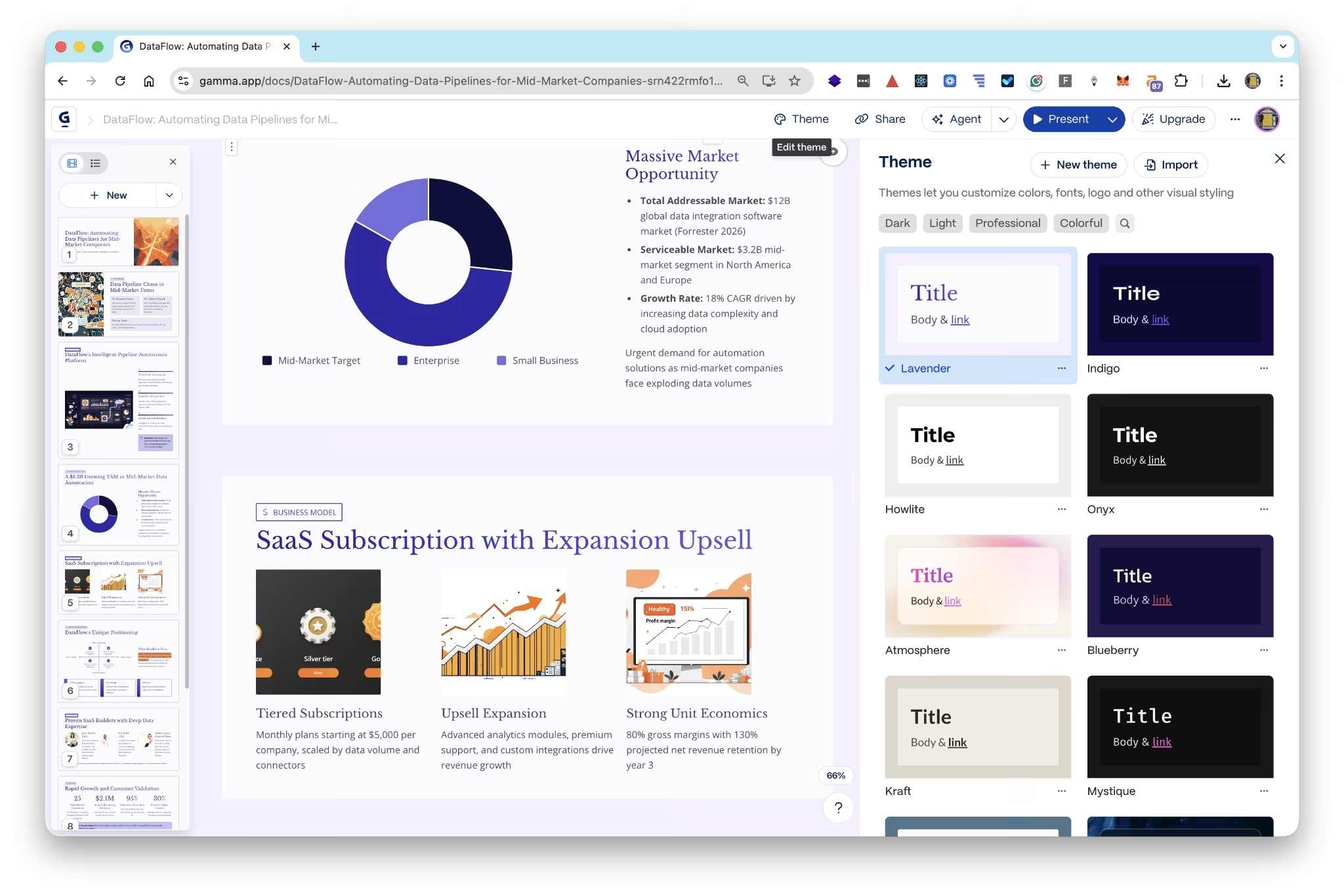
Gamma is the quickest way from an existing file to a deck that looks finished. You paste text or import a PDF or PPTX, and it builds a card-based deck you can restyle with a single instruction.
- Free plan that's actually usable: Up to 10 slides per prompt, PDF and PPTX import, and export to PDF, PPTX, PNG and Google Slides.
- Whole-deck edits: Change the tone, structure or theme across every card with one prompt.
- Web-first sharing: Decks can be shared via a link, making them easy to review asynchronously.
Limitation: Gamma's format is web-first. Exported PPTX files can need layout cleanup, and the free plan comes with limited AI credits that can run out after a few rounds of edits.
Pricing: Free plan available. Paid plans start around $9/seat/month, billed annually.
🟢 Prompt to try (after importing your file):
As a free AI presentation maker for a quick, polished draft, Gamma is hard to beat. Plan on a cleanup pass if the deck has to live in PowerPoint.
3. Microsoft Copilot in PowerPoint: best for turning Word docs into PowerPoint decks
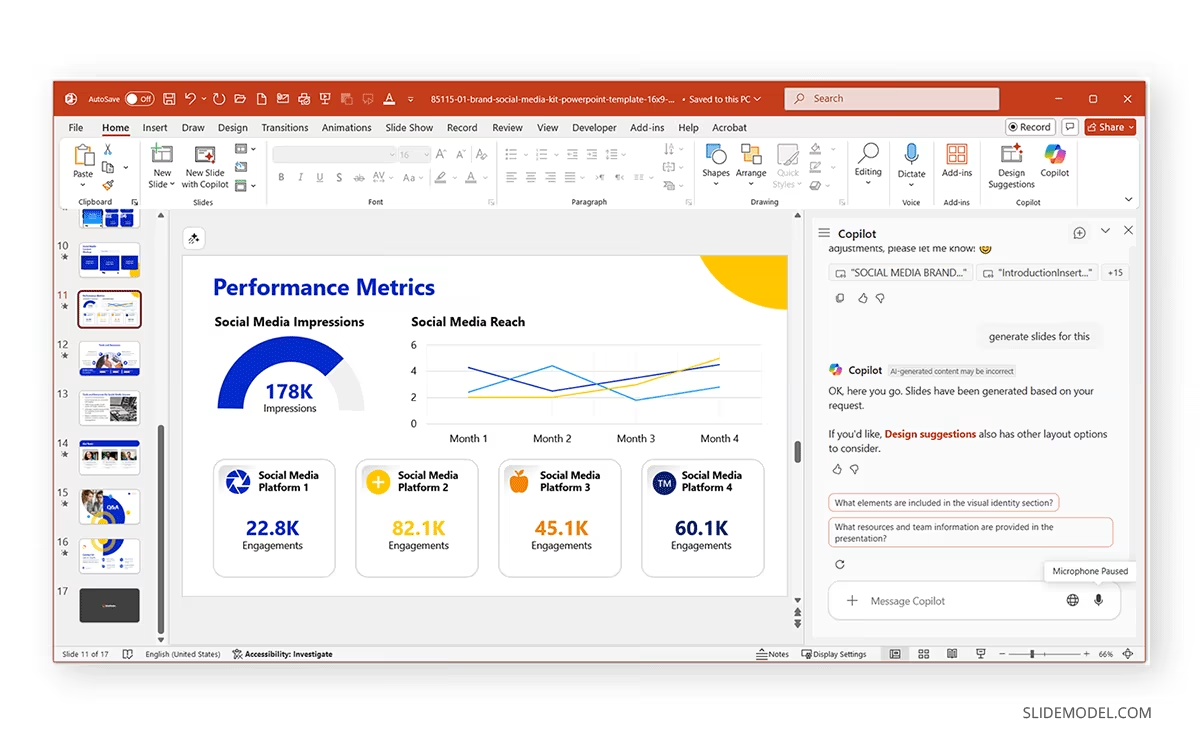
Copilot in PowerPoint is the most direct AI PowerPoint generator for content that already lives in Word. Choose "Create presentation from file," point it at the document, and it drafts a native deck using your template.
- Native file, no export: The output is a real PowerPoint deck that uses your existing layouts and brand kit.
- Reads document structure: Word heading styles help Copilot organize content into slides.
- PDF support on business plans: A Microsoft 365 Copilot work license adds PDF as a source. Copilot Pro for home handles one Word file at a time.
Limitation: You need a Copilot-eligible Microsoft 365 subscription. Results depend heavily on how well the source document is structured.
Pricing: Included with Microsoft 365 Copilot and Copilot Pro plans.
🟢 Prompt to try:
If your organization already pays for Copilot, start here before adding another tool.
4. Gemini in Google Slides: best for native Google Slides decks built from Drive files
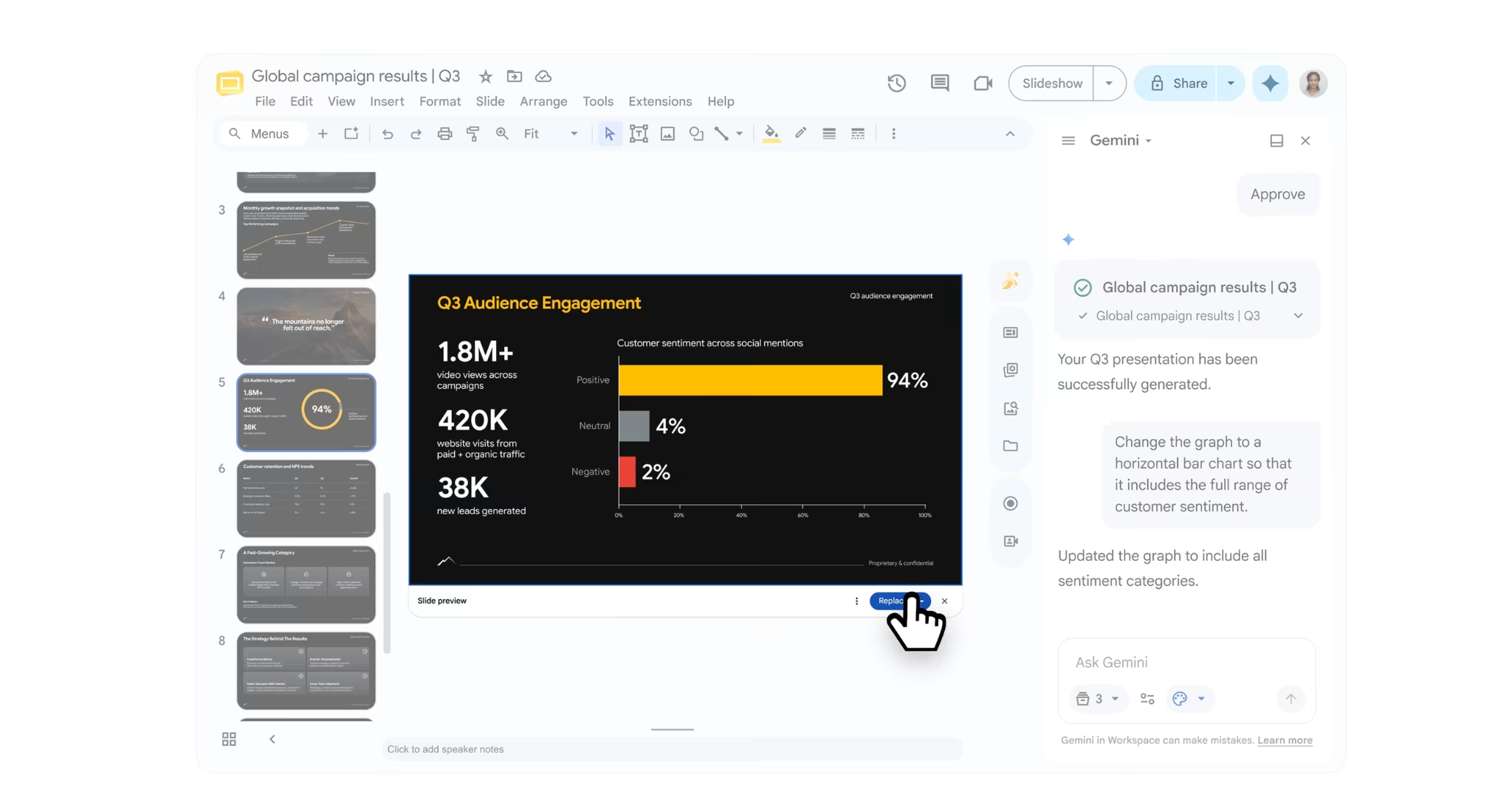
Gemini in Google Slides builds a full, editable deck from one prompt and the files you already keep in Drive. You describe the presentation, add Docs, Sheets, PDFs or a previous deck as sources, and review the outline before any slides are created.
- Grounded in your files: It pulls content from Drive and can suggest related files and emails to add.
- Matches existing style: Reference an existing deck to match its visual style.
- Native and editable: Every slide is a normal Google Slides slide, not an image.
Limitation: Full-deck generation is limited to eligible Workspace plans (Business Standard and Plus, Enterprise Standard and Plus). It launched on desktop and in English only.
Pricing: Included with eligible Google Workspace plans.
🟢 Prompt to try:
For teams working in Google Workspace, this is the most natural AI Google Slides option.
5. Canva AI: best for visual decks inside a full design platform
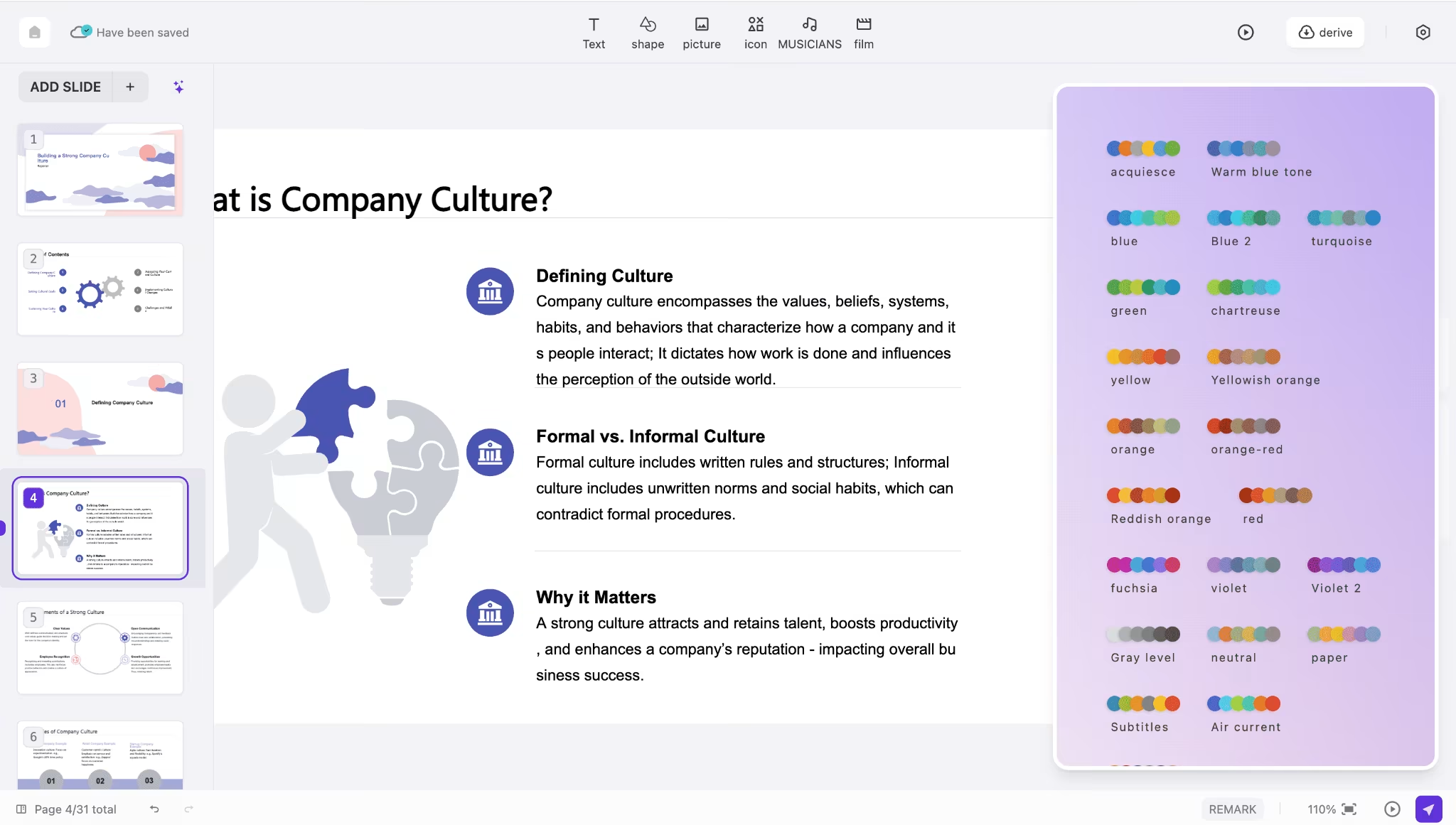
Canva AI is a good choice when your presentation needs to match your existing brand assets. You describe the presentation, edit the outline, then generate slides you can refine with Canva's full editor.
- Design depth: Templates, stock assets and a Brand Kit keep slides consistent with your other materials.
- Copy help: Magic Write drafts slide text and speaker notes.
- Familiar editor: If you already use Canva, nothing new to learn.
Limitation: Canva is strongest on visuals. Generated content often needs rewriting, and placeholder figures need replacing with your real data.
Pricing: Free plan with a shared AI credit pool. Pro starts around $12/month, billed annually.
🟢 Prompt to try:
A specific prompt matters more in Canva than anywhere else on this list. "Marketing presentation" gets you a generic deck.
6. Plus AI: best for doc-to-slides inside PowerPoint and Google Slides
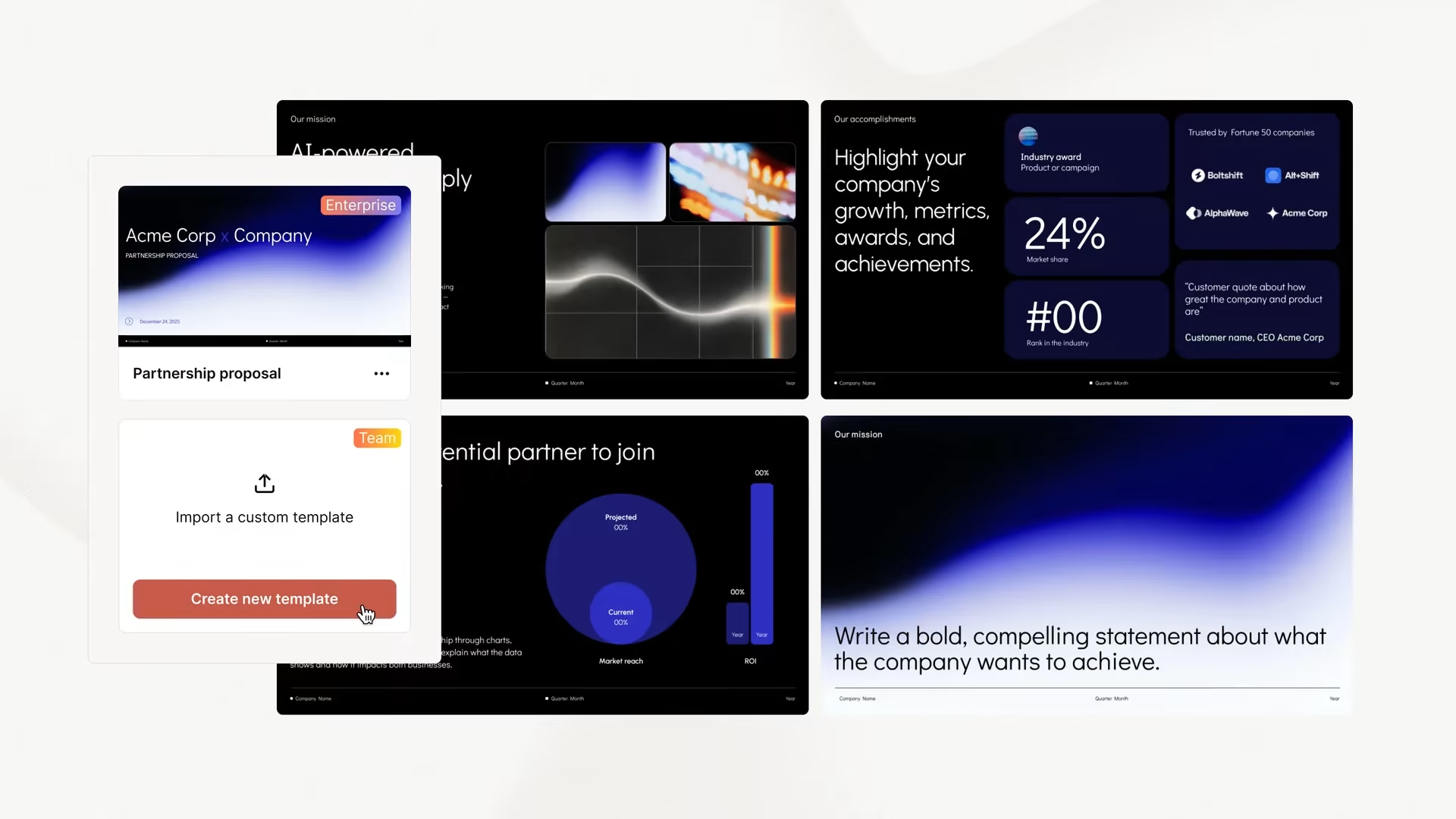
Plus AI is an add-on that generates slides inside the apps you already use. The deck it produces is a native PowerPoint or Google Slides file, so there's no need to export or convert the file.
- Works in both apps: One subscription covers PowerPoint and Google Slides.
- Document conversion: Upload a PDF or Word doc and it builds the deck from it.
- Slide-level edits: Rewrite or remix individual slides without regenerating the whole deck.
Limitation: Generation needs a paid plan after the 7-day trial, and document uploads require a higher-tier plan.
Pricing: 7-day free trial. Paid plans start around $10/month.
🟢 Prompt to try:
If your company uses PowerPoint or Google Slides as its standard presentation tool and you can't switch, Plus AI is the lowest-friction AI PowerPoint generator to add.
7. Beautiful.ai: best for decks from documents and URLs with self-adjusting layouts
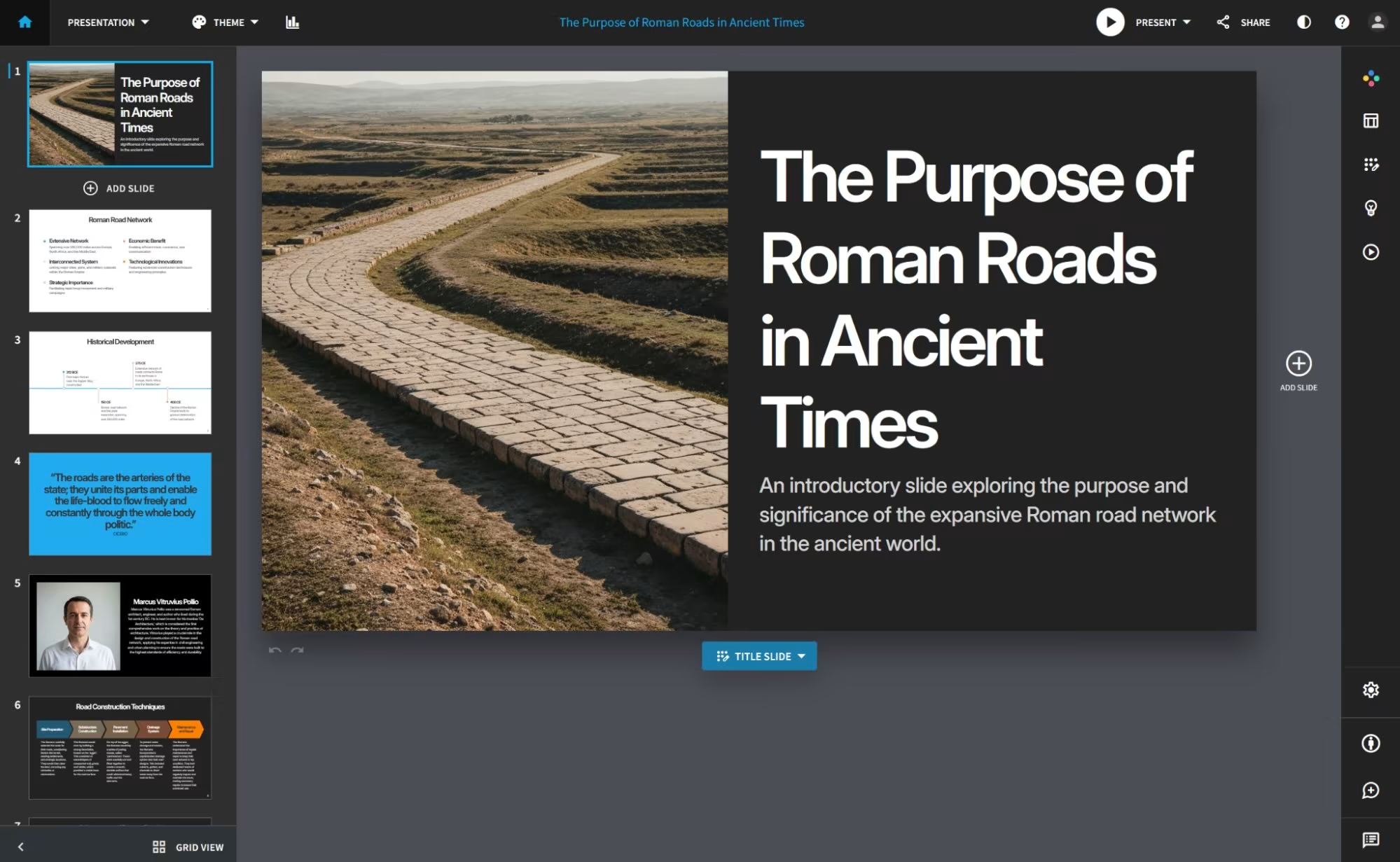
Beautiful.ai generates slides from text, PDFs and web pages, then keeps the layout tidy as you edit. Add a bullet and the slide reflows instead of breaking.
- Many source types: Documents, PDFs and URLs all work as starting points.
- Smart layouts: Spacing and alignment adjust automatically as content changes.
- Easy updates: Decks with figures that change every quarter stay consistent.
Limitation: The same smart layouts that keep slides clean also limit how far you can customize them. There's no permanent free plan.
Pricing: Starts around $14.50/month, billed annually.
🟢 Prompt to try:
How to create a presentation using AI
The fastest route is outline first, slides second, fact-check third. Skip the outline and you'll spend the saved time rearranging slides that tell the wrong story.
Step 1: Gather the source material in one place
Gather the document, notes and relevant conversation threads before writing your prompt. An AI presentation maker can only use what you give it. Make sure the AI tool has access to all relevant source material.
Step 2: Get an outline before slides
Ask for structure only, approve it, then generate. Fixing a 10-line outline takes a minute. Fixing 10 designed slides takes much longer.
🟢 Prompt to try:
Step 3: Generate the draft in the tool that matches the destination
The destination decides the tool:
- Content still scattered: Mira, to turn docs, chats and voice notes into an approved outline, slide copy and speaker notes before you pick a design tool.
- PowerPoint file: Copilot in PowerPoint or Plus AI.
- Google Slides file: Gemini in Google Slides or Plus AI.
- Shareable link: Gamma.
- Brand-heavy visuals: Canva AI.
If you drafted the outline in Mira, paste it into any of these tools as the prompt. This gives the design tool a clear structure and source data to work with.
Step 4: Check every number against the source
This is the step that makes a draft usable. AI slide tools sometimes round figures, merge two numbers or add a plausible statistic that isn't in your document.
🟢 Prompt to try:
Step 5: Apply the brand template, then edit slide by slide
Apply the template once, then fix individual slides. Regenerating the whole deck to change one slide often undoes the edits you already made.
🟢 Prompt to try:
Step 6: Add speaker notes and run one timing pass
Speaker notes are where the detail you cut from slides goes. Read the deck aloud once to check the timing.
🟢 Prompt to try:
A deck is usable when:
- Every number matches the source
- Each slide carries one message
- Fonts, colors and logos follow the brand template
- Data slides name their source
- Speaker notes cover what the slides leave out
- The file is in the format the audience will open
Can't a general AI assistant just make the deck?
Partly. A general AI assistant is good at preparing content: outlines, slide copy, speaker notes. Even when it can generate presentation files, dedicated slide tools typically offer more control over layouts, branding and design.
That makes the split simple. An assistant handles the content step, and an AI presentation generator handles the design step.
What matters is where that content step happens. If the source material sits in your messenger, an assistant that lives there skips the copy-pasting. Mira reads the forwarded messages, the connected doc and the voice note in one place, and remembers the project the next time you need a deck. For help with investor communications and company documents, explore Mira's AI for founders and CEOs.
🟢 Prompt to try (pitch deck from a one-pager):
Start with the content, finish in the slide tool
The best AI presentation maker for doc-to-deck work is the one that gets your real content onto slides intact. Most slide tools handle design well. The slow part is pulling the material together from docs, chats and notes, and that's where decks go wrong.
Mira covers that step inside your messenger. Connect the doc, forward the thread, add a voice note, and you get an outline, slide copy and speaker notes based on your original data. Set up a schedule to automatically draft your weekly update deck.
Try it with your next deck: forward the source doc to Mira and ask for a 10-slide outline.